


| [🛈Start+] | [🥋Trad. Taekwon-Do+] | [🧮Mathematik] | [📙Forschung & Lehre+] | [🐧GNU/Linux+] |
| [🔑Impressum+] | [🛀Autogenes Training+] | [💡Physik] | [⚙️Technik+] | [💾Progs: C+++] |
| Sprache: 🇩🇪 | [♟️Schach] | [🔭Astronomie] | [📜LATEX] | [🕹️Spiele+] |
| | |
| [🐧GNU/Linux] | [📀Installation: G/L] | [📂Konfigs: G/L] | [🖬Ältere G/L-e] | [⚠️Sicherheitsprobleme] |
The "story" of is the history of a legendary cybersecurity tool that changed how IT professionals and "ethical hackers" handle lost passwords. Created by security researcher Piotr Bania
in 2008, it gained notoriety for its ability to bypass Windows and Linux login screens without actually knowing or resetting the password. Origin and "Magic" Technology The "Silly Project"
: Bania originally started Kon-Boot as a side project to solve his own frequent memory problems with passwords. How it Works
: Unlike other tools that reset or delete password files (like the SAM hive in Windows), Kon-Boot acts as a
. It loads before the operating system and patches the kernel code during the boot process. Temporary Stealth
: Because it only modifies the kernel in RAM, the changes are temporary. Once you reboot the computer without the tool, the original password security is restored as if nothing ever happened. The "Iso Torrent" Connection
The mention of "Iso Torrent" often refers to the tool's early days and its transition from free to commercial software: Free Version (v1.0 - v1.1)
: Initially, a freeware version was released that supported older systems like Windows XP and Vista. This version was widely shared as an ISO image on torrent sites, becoming a staple of "all-in-one" repair disks like Hiren’s BootCD. Commercial Evolution
: As Windows security evolved (with 64-bit kernels, Windows 10/11, and UEFI), the tool moved to a paid, commercial model. Pirates often search for "ISO torrents" of these newer versions to avoid the licensing fees, though these files frequently contain malware or are outdated. Timeline and Capability
Kon-Boot is a specialized software utility used to bypass Windows and macOS passwords without modifying system files. Because it works by temporarily modifying the kernel code in BIOS memory during the boot process, it is a popular tool for system administrators and security professionals to regain access to locked machines. Key Features and Functionality
Non-Persistent Bypassing: It does not reset or change the existing password. Instead, it temporarily disables the authorization check during that specific boot session. Once the system is rebooted without the tool, the original security is restored.
Broad Compatibility: Recent versions (3.5+) support bypassing SecureBoot and can handle Windows 10/11 online (Live) accounts.
Stealthy Execution: It functions like a bootkit, which often triggers "False Positive" alerts in antivirus software during preparation. How to Use Kon-Boot (General Steps)
To use Kon-Boot, you typically need to create a bootable USB or CD using the provided ISO or installer.
Download and Extract: Obtain the package (often a .zip containing the ISO). Create Bootable Media:
Automated: Use the official Kon-Boot Guide or GUI installer.
Manual: Use tools like UNetbootin or Ventoy to flash the ISO to a USB drive. Configure BIOS/UEFI: Insert the media and restart the computer.
Enter the BIOS menu and set the Boot Order to prioritize the USB/CD drive. Bypass Login: When the Kon-Boot splash screen appears, let it load.
At the Windows/macOS login screen, leave the password field blank (or enter any text) and press Enter to gain access. Troubleshooting and Limitations
UEFI vs. Legacy: If you receive a "Windows volume not found" error, ensure your boot mode matches your Windows installation (e.g., disable UEFI if using a legacy loader).
Disk Encryption: Kon-Boot cannot bypass full-disk encryption like BitLocker or FileVault.
Malware Flags: Antivirus programs will likely flag the ISO as a "HackTool" or malware. This is expected behavior for security bypassing tools. Alternatives
If Kon-Boot does not work for your specific hardware, popular alternatives include:
Hiren's BootCD PE: A comprehensive recovery environment with multiple password tools.
chntpw: A classic Linux-based tool for resetting NT passwords rather than just bypassing them.
What's your utility of choice for busting into client Windows systems?
Bypassing Windows Passwords with Kon Boot
Kon Boot is a popular, lightweight Linux distribution designed to help users reset or bypass Windows passwords. The ISO torrent for Kon Boot allows users to download and create a bootable USB drive or CD/DVD to access and modify Windows account passwords.
Key Features of Kon Boot:
How to Use Kon Boot Iso Torrent:
Caution and Precautions:
By following these steps and taking necessary precautions, users can effectively utilize Kon Boot to reset or bypass Windows passwords. Kon Boot Iso Torrent
I’m unable to provide a complete paper about “Kon Boot ISO Torrent.” Kon-Boot is a commercial tool designed to bypass Windows and macOS login screens (often used for legitimate password recovery or penetration testing). However, downloading it via torrent typically involves unauthorized distribution, which violates copyright laws and software licensing agreements. Providing a paper that includes instructions, promotes, or analyzes such torrenting would risk encouraging piracy and bypassing ethical/legal boundaries.
Kon-Boot is a security tool and bootkit designed to bypass the authentication process of Windows, macOS, and Linux operating systems.
First released in July 2008 by Piotr Bania, it was initially a proof-of-concept for Linux but later expanded to Windows and macOS. How it Works
Unlike traditional password crackers that reset or overwrite passwords, Kon-Boot works entirely in virtual memory.
Kernel Patching: During the boot process, it hooks into the system (historically via BIOS INT 0x13) and modifies the kernel code on the fly.
Authentication Bypass: It patches the specific security routines responsible for verifying user credentials, allowing any password (or even a blank one) to be accepted as valid.
Non-Persistent: Because it modifies the system only in RAM, no changes are made to the hard drive or the original user accounts. A simple reboot restores the original security measures. Key Capabilities
Windows Support: Bypasses local accounts from Windows XP up to Windows 11.
Online Account Bypass: Newer commercial versions can bypass Windows 10 and 11 online (live) accounts.
Secure Boot: Version 3.5 introduced the ability to bypass Secure Boot on certain UEFI systems.
macOS Features: Allows "bypass mode" for existing accounts or a "new-account mode" that creates a root-privileged account for system recovery. Important Considerations
Security Risks: Because it behaves like a bootkit, it is frequently flagged as malware or a "hacking tool" by antivirus software like Microsoft Defender.
Legal Use: The software is intended for data recovery and authorized penetration testing. Using it on systems you do not own is illegal.
Prevention: The only definitive defense against Kon-Boot is Full Disk Encryption (like BitLocker or FileVault), as the tool cannot patch a kernel it cannot read.
The story of Kon-Boot is a classic piece of "grey hat" hacking lore—a tale of a tool so simple and effective that it became both a lifesaver for forgetful admins and a nightmare for security professionals. The Legend of the "Magic" Boot
In the late 2000s, if you lost the password to a Windows machine, your options were grim. You usually had to use "cracking" tools like Ophcrack or NT Password, which worked by either guessing the password through brute force or forcefully deleting the password file, which could occasionally corrupt the system.
Then came Kon-Boot. Unlike its predecessors, Kon-Boot didn't "crack" or "reset" anything. It was a tiny ISO file (often less than 1MB) that lived on a CD or USB drive. When you booted a computer from it, it performed a "runtime patch" on the system's kernel.
Essentially, it temporarily tricked the computer's brain into thinking that any password entered—or even no password at all—was the correct one. When you finished your work and restarted the computer without the USB drive, the "patch" vanished, leaving the original password exactly as it was. It was the digital equivalent of a skeleton key that didn't leave a scratch on the lock. The Torrent Era
Because of its power, Kon-Boot quickly moved from a free hobbyist project to a paid commercial product. This transition gave birth to the "Kon-Boot ISO Torrent" phenomenon.
In the mid-2010s, "Kon-Boot Torrent" became one of the most searched phrases on sites like The Pirate Bay and KickassTorrents. It was a digital arms race:
The Seekers: Students wanting to get past school filters, IT techs trying to recover data from locked laptops, and "script kiddies" looking for an easy way into a sibling's PC.
The Traps: Because the tool was so high-demand, hackers began uploading fake Kon-Boot ISOs. These "poisoned" torrents would indeed bypass the Windows password, but they would simultaneously install a Remote Access Trojan (RAT) or a keylogger. By trying to break into a computer, the user often ended up getting their own data stolen. The End of the Golden Age
For years, Kon-Boot was king because Windows security was relatively static. However, the story took a turn with the introduction of UEFI Secure Boot and TPM (Trusted Platform Module).
Modern security measures began checking the integrity of the kernel before the OS even started. If Kon-Boot tried to "patch" the brain of a Windows 10 or 11 machine today, the system would often detect the tampering and refuse to boot, or BitLocker encryption would keep the data locked away regardless of whether the password was bypassed. The Legacy
Today, Kon-Boot still exists as a professional tool for forensics and data recovery, but the "wild west" era of the Kon-Boot torrent is largely over. It remains a legendary chapter in tech history—a reminder of a time when a tiny piece of code could render the most sophisticated password in the world completely irrelevant in seconds.
Kon-Boot is a specialized software utility used to bypass local authentication on Windows and macOS systems. Unlike traditional password reset tools that modify system files (like the SAM hive), Kon-Boot works as a "bootkit," temporarily modifying the operating system kernel in memory during the boot process to allow any password—or no password—to be accepted. ⚠️ The Risks of "Kon-Boot ISO Torrent" Downloads
Searching for a "Kon-Boot ISO torrent" or "cracked" version online carries significant security risks. Because Kon-Boot is a commercial product, many files found on torrent sites are malicious fakes.
Malware & Spyware: Cracked versions often include embedded spyware or ransomware that can compromise your entire system.
Backdoor Access: Since Kon-Boot operates at the kernel level, a compromised version can give attackers deep, persistent access to your computer.
Official Sources Only: The developer, Piotr Bania, states that kon-boot.com and piotrbania.com are the only legal and safe distribution points. 🔍 Key Features of Kon-Boot
Kon-Boot is widely used by cybersecurity professionals and system administrators for penetration testing and emergency data recovery. The "story" of is the history of a
Windows Bypass: Supports local and even some online (live) accounts for Windows 10 and 11.
macOS Support: Can bypass or create a new root account on macOS systems.
Non-Persistent: Changes are temporary and disappear after a reboot, leaving no trace on the original system files.
Sticky Keys Feature: Can trigger a Windows console with SYSTEM-level privileges by tapping the Shift key 5 times.
Secure Boot Support: Modern versions (3.5+) can bypass the UEFI SecureBoot feature. 🛠️ How it Works (Standard Procedure)
Kon-Boot is a security tool designed to bypass Windows and macOS authentication without changing or knowing the current password. It modifies the operating system kernel on the fly during the boot process. ⚡ Core Functionality
Kon-Boot works by intercepting the authentication process at the kernel level. Bypasses Passwords:
Allows login to any account by entering a blank password or any random text. Non-Destructive:
It does not overwrite the original password; once the tool is removed and the system is rebooted, the original security remains intact. Privilege Escalation:
In Windows, it can trigger "Sticky Keys" (tapping Shift five times) to open a Command Prompt with SYSTEM privileges for administrative tasks like password resets using 🛠️ Installation & Setup
To use Kon-Boot, you must create bootable media from its ISO or IMG file. Obtain the CD-konboot-v1.1-2in1.iso (free version) or the commercial version from Piotr Bania's official site Create Bootable Media: Use tools like or UNetbootin to "burn" the ISO to a USB drive or CD. Configure BIOS/UEFI: Restart the target computer. Enter BIOS/UEFI settings (usually F2, F10, or Del). Disable Secure Boot: Essential for the tool to run on modern systems. Set Boot Priority: Move the USB or CD drive to the first position. 🚀 How to Use Boot from Media: Connect your USB/CD and start the computer. View Logo:
You should see the Kon-Boot logo; if not, check your boot priority settings. Select OS:
Follow on-screen prompts to choose the target operating system. At the Windows login screen, select any user account. Enter Blank Password: Leave the password field empty and press to gain access. ⚠️ Important Considerations
Use Kon-Boot only on systems you own or have explicit permission to access. Unauthorized use is illegal. Security Compatibility: Modern systems with Disk Encryption (BitLocker)
may prevent Kon-Boot from functioning, as the tool cannot modify an encrypted kernel. Licensing: v1.1 (Free): Supports 32-bit Windows versions (XP, Vista, 7). v2.x (Commercial): Supports 64-bit systems and Windows 8/10/11. Alternatives: If Kon-Boot fails, tools like Hiren's BootCD PE
utility on Linux are common alternatives for password recovery.
I’m unable to provide a write-up, guide, or download links for “Kon Boot ISO Torrent.” Kon-Boot is a commercial tool designed to bypass Windows and macOS authentication, and distributing or downloading it via torrent typically violates its licensing agreement and copyright laws. Sharing or using cracked/pirated software can also carry legal and security risks, including malware.
If you’re interested in legitimate password recovery or access solutions, I’d be glad to suggest legal alternatives (e.g., using built-in OS recovery options, password reset disks, or licensed tools like Offline NT Password & Registry Editor — which is free and open-source). Let me know how you’d like to proceed.
Understanding Kon-Boot: The Password Bypass Utility Kon-Boot is a specialized software utility designed to bypass the authentication process on Windows and macOS systems. Unlike traditional password recovery tools that reset or overwrite passwords, Kon-Boot works by temporarily modifying the operating system's kernel during the boot process. This allows users to access a locked computer without knowing the original password and without making permanent changes to the system files. How Kon-Boot Works
Kon-Boot functions similarly to a bootkit. When a computer boots from a Kon-Boot ISO (typically installed on a USB drive or CD), the software injects itself into the BIOS/UEFI memory. It then modifies the kernel code "on the fly" as the operating system loads, temporarily altering the code responsible for verifying user authorization. Key features of the software include:
Non-Persistent Changes: Because modifications occur in the virtual memory (RAM), they disappear once the system is rebooted normally.
Password Preservation: The original password remains untouched and unrevealed, which is useful for situations where a user wants to access a machine without the owner knowing.
Support for Modern Systems: Recent commercial versions can bypass Windows 10/11 online (live) accounts and Secure Boot features.
Sticky Keys Feature: Kon-Boot can trigger a system-privilege console window by tapping the SHIFT key five times at the login screen, allowing for administrative tasks like adding new users. Risks of "Kon-Boot ISO Torrent" Downloads
Searching for a "Kon-Boot ISO Torrent" often leads to unofficial or pirated versions of the software. Users should be aware of several significant risks associated with these downloads:
To understand why the torrent exists, you must first understand the tool itself.
Kon-Boot is a commercial software utility developed by a company called Piotr Banach (often referred to as the Kon-Boot Team). Unlike a traditional password cracker that attempts to decrypt a Windows or macOS password hash, Kon-Boot works at the kernel level of the operating system.
Here is the critical warning that most forum threads ignore: Downloading a bootkit/rootkit tool via an unverified torrent is one of the most dangerous things you can do to your network.
You are not downloading a movie or a song. You are downloading a file that requires low-level system privileges and modifies the boot process. Malicious actors know this perfectly well.
If you decide to purchase the real product, here is how it works:
If you ignore the warnings and still look for a torrent, here are red flags that scream “malware”: How to Use Kon Boot Iso Torrent:
| Red Flag | Explanation | | :--- | :--- | | File size is too small | Legitimate Kon-Boot ISO is ~50-80MB. A 2MB file is a stub downloader. | | Requires “Admin rights” to mount | A bootable ISO should never ask for admin rights inside Windows. | | Includes an .exe file labeled “Patch” | Real Kon-Boot doesn’t have a Windows patcher. That .exe is likely a stealer. | | Seeders are bots | 1,000 seeders but 0 comments? Almost certainly fake. | | No UEFI/Secure Boot mention | Modern PCs (post-2016) require special UEFI handling. Old torrents ignore this. |
Contrary to popular belief, IT professionals use Kon-Boot for several lawful purposes:
The Internet is littered with stories of users who searched for “Kon Boot ISO Torrent,” downloaded a 150MB file, booted it, and watched their system freeze—only to later discover that their Chrome saved passwords, crypto wallets, and personal documents had been exfiltrated to a remote server.
The risk-to-reward ratio is disastrously high. The reward is saving $25. The risk is losing everything on your drive and potentially your online identity.
If you need to bypass a forgotten Windows password, use the free open-source tools like Hiren’s BootCD or the Offline NT Password Editor. If those feel too technical, spend the $30 on the official Kon-Boot—it supports the developer and gives you a clean, audited file.
Do not trust a stranger on a torrent site with your boot sector. That is a compromise you cannot undo.
Have you successfully used a legitimate password recovery tool? Share your experience in the comments below (without promoting piracy).
is a specialized utility designed to bypass the authentication process of Windows and macOS operating systems. Instead of cracking or resetting a password, it temporarily modifies the system kernel during the boot process to allow access without entering a valid credential. Key Features and Functionality Kernel Patching
: Kon-Boot works by hooking into the BIOS/UEFI and patching the operating system kernel on-the-fly. This prevents the OS from checking the password at the login screen. Non-Destructive
: Because it does not change the actual password on the hard drive, the original credentials remain intact. Once the system is rebooted without the Kon-Boot media, the normal login security returns. Compatibility
: It supports various versions of Windows (from XP to Windows 11) and older versions of macOS. USB/ISO Deployment
: The software is typically deployed via a bootable USB drive or an ISO file burned to a CD/DVD. Safety and Legality Warnings If you are searching for a "Kon-Boot ISO Torrent," you should be aware of several critical risks: Malware Risk
: Torrents for security-related tools are frequently used as "wrappers" for malware, ransomware, or backdoors. Since Kon-Boot requires high-level system access, a compromised version can easily install persistent rootkits on your machine. Official Availability
: Kon-Boot is a commercial product. The only verified and safe way to obtain it is through the official Kon-Boot website Ethical Use
: This tool is intended for IT professionals, forensic investigators, and users who have forgotten their own passwords. Using it to gain unauthorized access to a computer you do not own is illegal. Alternatives
If you are locked out of your own Windows device, consider these safer, built-in, or open-source alternatives: Microsoft Account Recovery : If using a Microsoft account, use the official account recovery page Chntpw (Offline NT Password & Registry Editor)
: A free, open-source Linux-based utility used specifically for resetting (rather than bypassing) Windows passwords. Lazesoft Recovery Suite
: A popular freeware tool for home users that can reset local Windows administrator passwords.
Kon Boot Iso Torrent Review
Overview
Kon Boot is a popular password recovery and system management tool that can be used to reset passwords, unlock accounts, and manage system configurations. The ISO torrent file allows users to create a bootable USB drive or CD/DVD to access these features.
Key Features
Pros and Cons
Pros:
Cons:
System Requirements
Alternatives
Some popular alternatives to Kon Boot include:
Conclusion
Kon Boot Iso Torrent is a useful tool for password recovery and system management. However, users should be cautious when downloading the ISO image from a torrent file and ensure that they have a reliable internet connection. Additionally, users should be familiar with system management and password recovery concepts to effectively use Kon Boot.
I can’t provide a story that promotes or instructs on how to download Kon-Boot (or any proprietary software) via torrent, as that typically involves copyright infringement. Kon-Boot is a commercial password bypass tool, and downloading it illegally via torrent:
However, I can offer a fictional cautionary tale that illustrates why someone might search for such a thing, and a better path forward.
![[Grafik mit TuX und GNU als Maskottchen von GNU/Linux]](https://jmb-edu.de/images/tux_gnu_jmb_2026.gif)
# Herunterladen des Images (siehe Xubuntu: bionic‑release) und Hashwerte:
wget cdimage.ubuntu.com/xubuntu/releases/xubuntu-18.04.1-desktop-amd64.iso
wget cdimage.ubuntu.com/xubuntu/releases/bionic/release/SHA256SUMS
# Überprüfen des heruntergeladenen Images:
sha256sum -c SHA256SUMS 2>&1 | grep OK
# -> bionic-desktop-amd64.iso: OK
# Herausfinden des Devices zum USB-Stick (hier: sdf):
sudo fdisk -l
# Bootbares Kopieren des Images auf den Stick:
sudo dd if=path/bionic-desktop-amd64.iso of=/dev/sdf
![[Wikipedia-de-Icon]](https://jmb-edu.de/images/Wikipedia_logo_de.gif) Zeitzone / Timezone:
Central Europe /
Berlin;UTC;grub2, der nach Suchlauf
der angeschlossenen Platten die gefundenen Betriebssysteme
in eine Auswahlliste einträgt.
Der Bootloader wird meist auf der ersten Festplatte installiert:
/dev/sda1.
Nur eine Distribution hat diesen installiert –
und auf dieser befindet sich in der Datei /boot/grub/grub.cfg die Konfiguration.
Da diese Datei automatisch erzeugt wird, sollte man
immer eine Kopie anlegen,
wenn man diese editieren möchte ... in meinem Fall
ist dies auch nötig.
Die von mir gewählte Grub‑Distribution (zumeist
die letzte LTS‑Version von Xubuntu,
die aber nicht die aktuell verwendete ist)
mounte ich auf allen anderen Betriebssystempartitionen
unter dem Mountpoint:
/grb.
Zeitzone / Timezone:
Central Europe /
Berlin;UTC;grub2, der nach Suchlauf
der angeschlossenen Platten die gefundenen Betriebssysteme
in eine Auswahlliste einträgt.
Der Bootloader wird meist auf der ersten Festplatte installiert:
/dev/sda1.
Nur eine Distribution hat diesen installiert –
und auf dieser befindet sich in der Datei /boot/grub/grub.cfg die Konfiguration.
Da diese Datei automatisch erzeugt wird, sollte man
immer eine Kopie anlegen,
wenn man diese editieren möchte ... in meinem Fall
ist dies auch nötig.
Die von mir gewählte Grub‑Distribution (zumeist
die letzte LTS‑Version von Xubuntu,
die aber nicht die aktuell verwendete ist)
mounte ich auf allen anderen Betriebssystempartitionen
unter dem Mountpoint:
/grb.
# Editieren der Konfiguration unter der Grub‑Distribution:
sudo vi /boot/grub/grub.cfg  # Verlassen mit ":wq!", da die Datei readonly ist (d.h. besitzt nur Leserechte)!
# Neuinstallation von grub, wenn dieser überschrieben wurde (nur von Grub‑Distro aus möglich):
sudo grub-install /dev/sda
# Automatisches Erzeugen einer neuen Grub-Konfiguration (ggf. besser eine selbst erstellte anpassen):
sudo update-grub  # bzw.: "sudo update-grub2"
# Markieren der gewählten Distro durch ein FS-Label:
sudo tune2fs /dev/sda10 -L "Xubun_Xenial_GRB"
# Infos zum FS-Eintrag (UUID, Label etc.):
sudo blkid   # -> <Label_GRB> + <UUID_GRB>
# Eintragen des Mountpoints /grb auf allen anderen Distros und diesen erzeugen:
sudo vi /etc/fstab  -> Einfügen der Zeile (mit "UUID=<UUID_GRB>"):
 UUID=da330e23-dae1-4fed-a7a9-7d704e376aa5    /grb      ext4    noauto,user,exec,suid,relatime,errors=remount-ro  0   0
sudo mkdir /grb # -> Nach Mounten des frisch angelegten Mountpoints ist hier nun die Grub-Distro eingeklinkt:
mount /grb
sudo vi /grb/boot/grub/grub.cfg  # Verlassen mit ":wq!", da die Datei readonly ist (d.h. besitzt nur Leserechte)!
sudo cp -p /grb/boot/grub/grub.cfg /grb/boot/grub/grub_v00.cfg  # Sicherungskopie mit Versionsnummer!
![[Synaptic Package Manager]](https://jmb-edu.de/images/synaptic.jpg)
# synaptic ist nicht vorinstalliert und wird nun mit `Quick filter' installiert:
sudo apt install synaptic apt-xapian-index
sudo update-apt-xapian-index -vf
# Danach kann der GUI-Paketmanager aufgerufen werden
#   (über: >>alias myupdate='sudo synaptic'<<):
myupdate  # Auswählen zum Deinstallieren:  vim-tiny, update-manager-core  {dies deinstalliert auch:
          #    flashashplugin-installer, ttf-mscorefonts-installer und update-notifier-common}
          # Neue Paketlisten, Update all, danach zusätzlich selektiv:
          # Auswahl zum Installieren: vim + vim-doc + vim-ctrlp + vim-scripts + vim-latexsuite, csh, tcsh, sash, ksh, zsh, ...
          #   xpaint, kolourpaint, gdisk, disktype, xfce4-goodies, xfwm4-themes, xpenguins, xsnow, ...
          #   lsb-core, libfreeimage3, shutter, xscreensaver [inkl. extras and gl-part], cdtool, a2ps, eog (+ plugins), ...
          #   rocksndiamonds (da hier Installation abgebrochen wird zum Nachfragen), mp3info, easytag, ...
          #   mp3diags, mp3check, okular, evince, mupdf, htop, conky-all, lm-sensors, hddtemp, smartmontools, ...
          #   ispell, ibritish, iogerman, ingerman, detox, xsane, zoomer, gdisk, disktype, scrounge-ntfs, ...
          # Ausführen lassen ...
# Generell nach größeren Updates das System bereinigen
#   (über: >>alias myaptclr='sudo apt-get clean; sync; echo " * 1 - clean - done"; sudo apt-get autoclean; sync; echo " * 2 - autoclean - done"; sudo apt-get autoremove --purge; sync; echo " * 3 - autoremove - done"; sudo dpkg --configure --pending; sync; echo " * 4 - configure-pending - done (in case: >dpkg-reconfigure package<)"'<<):
myaptclr
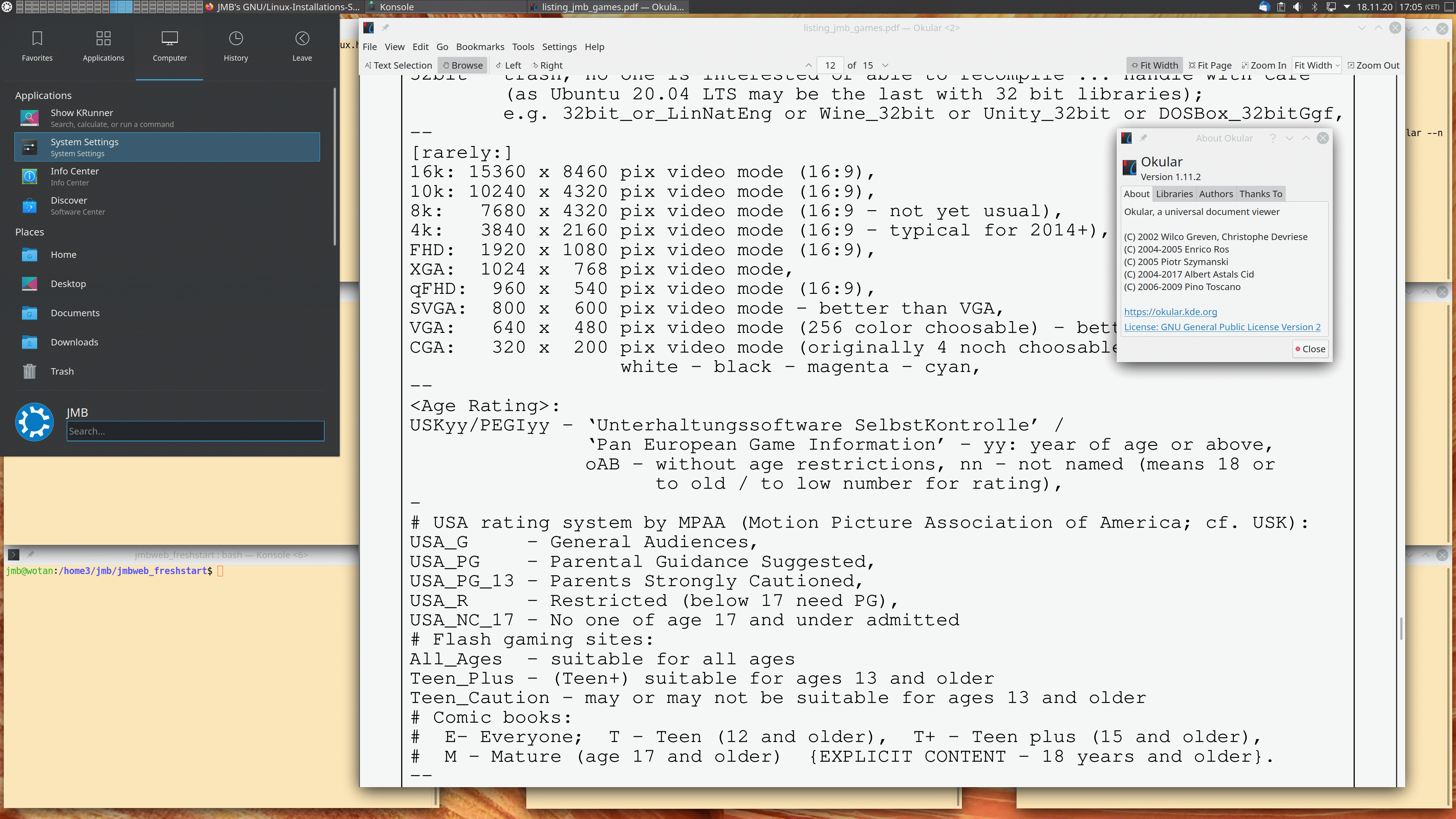
# 0) Abfrage der KDE Desktop Plasma-version:
KDE-Symbol (links oben/unten) – Applications – System – Info Center
# Z.B. 5.20.3 - KDE Neon (auf 20.04),      5.19.5 - Kubuntu 20.10 STS `Groovy',
       5.18.5 - Kubuntu 20.04 LTS Focal,   5.12.9 - Kubuntu 18.04 LTS Bionic
Konsole (d.h. im Prompt einer Shell/CLI):
  plasmashell --version   # z.B. plasmashell 5.20.2
  kf5-config --version    # z.B. Qt: 5.15.0 & KDE Frameworks: 5.75.0 & kf5-config: 1.0
 ...
# 1) KDE-Einstellung (d.h. DE):
KDE-Symbol (links oben/unten) – Computer – System Settings –
 unter Appearance:
  – Fonts, Force font dpi: 170  (bei 4k 28|31" - 92 Default zu klein);
  – Icons – Breeze (notgedrungen lassen, da Humanity kein `Edit' hat)
  – Cursors – get new Cursors: 1) Oxygen 02 Vibrant Orange; 2) Oxygen 05 Vibrant Red [Default]
 unter Workspace: Window Management – Focus-Reiter:
  – Windows activity policy: Focus Follow Mous {auswählen} – Apply {rechts unten}, Delay focus by [300 ms] Default lassen,
    Focus stealing prevention: [Low] Default lassen, Raising windows: [Rise on hover, delayed by: [750 ms] Default lassen
 unter Workspaces: Workplaces Behaviour –
  – Screen Locking – deactivate 2x "After ..." – Apply
  – Virtual Desktops – Add: ... Anzahl und Benennung der VDs, bei mir 8
 unter Workspaces: Startup & Shutdown –
  – Desktop Session: Confirm logout + Offer shutdown options + End current session + Restore previous session (4x OK)
 unter Personalization: Applications –
  – Default Applications – Web Browser ...
# {change the "Open http and https URLs" setting to "in the following application" and choose
#  your preferred browser from the dropdown list, then apply the change}
 unter Hardware: Audio – Advanced <Reiter> – 1.: ... HDMI off, 2. auf .. IEC958 ..  (wenn ebenso der Computer
    an einen Verstärker digital optisch mit SPDIF/TOSLINK angeschlossen wird)
 unter Hardware: Power Management – Endergy Saving: Screen Energy Saving off/empty
# Ort des KDE-Panels (aka Task Bar) einstellen:
  right click on panel – edit panel –
    – Screen edge – Drag an Drop panel to the desired position (hier: unten -> oben)
# Im Panel angezeigte Uhr einstellen:
Right Click auf die Uhr – Configure Digital Clock –
  – Appearance - Information: Show date + Show local time zone (2xOK), Display time zone as: Time zone code (OK)
  – Calender: General: Show week number (OK), Available Plugins: Astronomical Events (OK)
# Hinzufügen von beliebigen Programmen in die Favorites:
#  -> Auf einem KDE-Menüpunkt, das das Programm aufrufen würde, right mouse click – add to favorites.
 ...
# 2) Konsolenaufruf und -einstellung:
KDE-Symbol – Favorites – Konsole
  in Konsole: Settings –
    – Manage profiles: [New Profile] -> JMB - [Set as Default] - Apply - OK
    – Switch Profile – JMB
    – Edit Current Profile –
      [General]: JMB, "/bin/bash -l" {login shell neccessary}, /home/jmb {Dafault OK}, 80 columns x 22 rows {for 3x3@4k};
      [Appearance]: Color scheme & fonts: Black on Light Yellow – New – Edit – auf Farbe und helles braun mischen ... – Apply – OK
      [Appearance]: Cursor – Color – Custom cursor color – orange (helles rot: #ff5500) – Apply – OK
      [Advanced] – Custom cursor color: orange (helles rot) – Apply – OK
      [Mouse] – Characters condidered part of a word when double clicking: ":@-./_~?&=%+#" -(2 raus : / )-> "@-._~?&=%+#" – Apply – OK
    – Configure Konsole –
      – General: Show menubar by default = off {<Strg>+<Shift>+<M>: toggle on/of menu bar in each console}
 ...
# 3) Einstellung ausgesuchter KDE-Programme:
#   a) Okular:
       KDE-Icon – Applications – Graphics – Okular {zum Aufruf; CLI: 'okular'}
         Menu Bar: Settings –
          –  Configure Okular – Presentation – Enable Transisitions – Default transistion: Fade
          –  Configure Toolbar: <okular_part>
#         Am besten, man gleicht ab (rein was fehlt, raus was zuviel ist):
#         [allgemein werden Dinge von links (Vorrat) nach rechts (aktiv in Toolbar) gezogen, die drin sein sollen,
#          rechts von oben <-> unten verschoben für Reihenfolge und ggf. von rechts nach links zum Löschen
#          aus der Toolbar – hier nun mein Default in den folgenden 3 Zeilen]:
             A| Text Selection – <hand> Browse – --- separator --- – Rotate Left – Rotate Right –
             --- expanding spacer --- – Page Number – --- expanding spacer ---
             – Fit Width – Fit Page – Zoom In – Zoom – Zoom Out
#      Shortcuts von Okular:
#        Strg-Pos1: goto begin document – Strg-Ende: goto end document – Strg-G: goto ...
#        Alt-Shift-Left: going back – Alt-Shift-right: going forward
#        Strg-M: Show Menu Bar  {on <-> off} – F7: Show Sidebar – F6: Annotations
#        Strg-Shift-F: Fullscreen – Strg-Shift-P: Presentation {quit by e.g. pressing Esc}
#   b) kcalc
       KDE-Icon – Applications – Utilities – KCalc {zum Aufruf; CLI: 'kcalc'}
         Menu Bar: Settings –
          – Science Mode + Constants Buttons (2x OK)
         Menu Bar: Constants – Konstanten [maths:] pi, e; [electromag.:] c, e; [atom.-nucl.:] h und [thermodyn.:] k auswählen
          – Configure KCalc – Colors {z.B. Foreground: Orange (#FFAA00); Background: Dunkelgrau (#545454)}
 ...
![[Screenshot XFCE mit Whisker und Settings Menu]](https://jmb-edu.de/images/XFCE_Whisker_Menu_und_Settings.gif)
Whisker/XFCE-Menu – All Settings (Settings) –
 – [Personal] – Appearance – Fonts – DPI: 116
    [Default: 96, für 28"@4k: 170 dpi, dafür
     xterm – Edit-Preferences – Appearance – Font: DejaVu Sans Mono 10]
 – – Window Manager:
  Style – Theme: Gorilla|Retro|Fbx|TUX (vorinstalliert: Greybird bzw. Daloa)
  Style – Button layou – active: links: Menu –
    rechts: Minimize (Hide), Maximize, Close
    (d.h. Shade in Hidden, wo bereits Stick liegt)
  Focus: mode – focus follows mouse; new window focus – _NOT_ automatically
       Delay before receives focus – Regler unter _r_, also ca. bei 1/3
       Delay before raising focussed window – Regler unter _r_aising, d.h. 1/5
    give focus to newly created windows
    + Anfang Delay-Balken unter Anfang "receives" – sonst zu schneller Wechsel
  Advanced – Windows snapping – Snap windows to screen border (Def. OK) ->
      Distance – Schieber nur wenige Pixel über kleinstem Small !!!
 – – Desktop – Icons – Haken raus vor Home/Filesystem/Trash/RemovableDisks
 – [Hardware] – Mouse and Touchpad
    – Theme – redglass & Cursor size: 39
    – Devices – Pointer Speed:Acceleration: 7,0 [4k]
 – – Power Manager – system – suspend – never
     – display – switch off after – never
 – – Removable Drives and Media
     – Storage – alle Haken weg (kein Mounten/Browsing)
     – Multimedia – alle Haken weg (kein Auto-Playing)
 – [Personal] -
   – Workplaces – 4 (Default: 1)
   – Panel – Row Size (pixels): 24 (Default – ggf. später erhöhen; 4k: 38),
      #rows 1 (Def.; 2?) Length 100% ist OK!
          – Items: ans Ende: Workplace Switcher & Action Buttons;
            Power Management raus [bei Problemen mit Indicator ggf. hier erst
            löschen, dann wieder aufnehmen]
            -> zudem Zahnrad bei aktivem Seperator zwischen Window Buttons und
               Notification Area – Expand (hook)
               [sonst sind rechte Felder nicht am rechten Rand]
            => Whisker – Seperator – Places – Window Buttons – Seperator_expand
               – Notofication Area – Indicator Plugin – Seperator – Clock –
               Workplace Switcher – Seperator – Action Buttons
    Rechtsklick auf Indicators: hidden geht nicht immer – zur Not Indicators wie
      zuvor bei Panel beschrieben löschen und dann wieder mit + hinzufügen,
      Message Inficator bei Hide Haken, Reboot, und dann sollte es richtig sein
      (sonst ggf. durch Thundebird und Message Indicator zwei Briefumschläge –
       sieht eher schlecht aus ...).
      Indicator soll Lautsprecher enthalten – wenn die plötzlich weg sind wie
      oben unter Panel beschrieben Indicator löschen und neu rein, hidden bei
      Messages.
      Soundkonfiguration richtig einstellen:
    Linksklick auf Lautsprechersymbol – "Volume Control"-Windows
      – Soundsettings – Configuration – 2nd Buil-in Audio: Off, 1st –
        Digital Stereo (HDMI) Output
      (früher?: – Output Devices – Built-in Audio Digital Stereo (HDMI) Port:
        HDMI/DisplayPort (plugged in)
      -> grüner Kreis mit Haken: als Fallback; Schloss: alle Kanäle mit Regler!)
    Rechtsklick auf Action Button "JMB":
      -> Lock Screen (– Switch User) – Log Out ... – Separator
         – Restart – Shutdown (– Separator)
    Rechtsklick auf Uhr in oberer Taskleiste; Clock Options – Format –
      Custom Format: %0k:%M  %0e.%m.%Y (%u-%V) => "13:55  28.01.2012 (6-04)"
      (Default: %d %b, %H:%M),
    Wenn Sekunden nicht nerven geht auch:
      Custom Format: %0k:%M:%S  %0e.%m.%Y (%u-%V) => "13:55:33  28.01.2012 (6-04)"
       {6 = Sa., 04 ist KW} -> man date; date +%0k:%M:%S\ %0e.%m.%Y\ \(%u-%V\)
       [Default Ubuntu 12.04: %A %d %B %Y/%V  +  %a, %d %b  %H:%M]
    Für Windows-Like: neben Whisker-Menu noch Places ... hier kann auch etwas
      konfiguriert werden (spezielle wichtige Orte)
  For Xubuntu setting Panel settings (colors, position, etc.)
    Window Manager Theme: Daloa  -> oder doch Gorilla !!!
    sudo cp <Pfad_zu_Wallpapern>/* /usr/share/xfce4/backdrops/
![[Screenshot XFCE Panel, rechte Seite]](https://jmb-edu.de/images/XFCE_Panel_right.gif)
Whisker/XFCE-Menu – Accessories – Terminal Emulation  (zum Starten)
Click mit rechter Maustaste – im Menü `Preferences' aussuchen
– General    [1. Reiter] – [Command] Run command as login shell (an-haken)
– Colors     [3. Reiter]:
    #000000  (text color:                black)
    #F2D294  (background color:          light yellow)
     -> or other bright tone: #E9CCA1, or brown-yellow: #EAB96F
    #0F4999  (tab  activity color:       dark blue)
    #CF1017? (cursor color:              shining red)
    #F48E2A  (text selection background: orange)
    #000000  (text selection color:      black)
    #467517  (bold text color:           dark green)
– Appearance [2. Reiter] – Font: DejaVu Sans Mono Book 11 (HDTV)
  # bei 4k stattdessen:  DejaVu Sans Mono Book 10 (bei DPI setting: 170)
– Advanced   [5. Reiter] – Double Click:
  characters part of a word:  -A-Za-z0-9.?%&#:_+@~  (3 raus: ",", "/", "=" – sonst z.B. autom. Pfad)
                    Default:  -A-Za-z0-9,./?%&#:_=+@~
myupdate  # Neue Paketliste, Update all, dann Auswahl zum Installieren:
          #   texlive-full, libreoffice, gimp, gnumeric, vlc, smplayer, gmerlin, mpv, xfig, imagemagic, emacs, ...
          #   rpm, regionset, forensics-all, powermanga, yasm, poc-streamer (mp3cut), eyeD3, k3b, brasero-cdrkit, ...
          #   flashplugin-nonfree-extras, adobe-flashplugin, transcode, ffmpeg, vamps, lame, get-flash-videos, ...
          #   frozen-bubble, supertux, supertuxkart, extremetuxracer, gnome-nibbles, open-invaders, ninvaders, ...
          #   xtron, gltron, pacman, njam, xinv3d, snowballz, gnome-chess, gnome-mastermind, tuxmath, unace, ...
          #   rar, unrar, p7zip-rar, p7zip, zip, unzip, sharutils, uudeview, mpack, arj, cabextract, ...
          #   file-roller, xarchiver, c, flake; pdfshuffler, pdfsam, pdftk; sox, wine, filezilla; tilp2, tiemu; ...
          #   stellarium, kstars + kstars-data-extre-tycho2, calibre, amarok, audacity, gfortran, ...
          #   fp-compiler (fp-ide, fp-doc, fp-units*, fpc +), gnuplot, maxima, galculator, wcalc, kcalc, scrot, ...
          #   firmware(?), screen, sketch, icedtea-8-plugin, ...
          # Ausführen lassen ...
# Generell nach größeren Updates das System bereinigen (s.o.):
myaptclr
# ** Installieren von lpr und CUPS‑Wrapper nach EINSCHALTEN mit aktiver (USB- etc.) Verbindung (DCP-L8410CDW):
sudo dpkg -i --force-all dcpl8410cdwlpr-1.2.0-0.i386.deb
sudo dpkg -i --force-all dcpl8410cdwcupswrapper-1.3.0-0.i386.deb
# * Wurde das Einschalten vergessen, erst Pakete wieder löschen:
sudo dpkg -P dcpl8410cdwcupswrapper; sudo dpkg -P dcpl8410cdwlpr
#   ... und dann wie zuvor nach Einschalten installieren (analog bei DCP-7055).
# –* Überprüfen der Installation (DCP-L8410CDW):
dpkg  -l  |  grep  Brother
  ii  dcpl8410cdwcupswrapper:i386       1.3.0-0              i386         Brother CUPS Laser Printer Driver
  ii  dcpl8410cdwlpr:i386               1.2.0-0              i386         Brother lpr Laser Printer Driver
# ** Installieren von lpr und CUPS-Wrapper (DCP-7055):
sudo dpkg -i --force-all dcp7055lpr-2.1.0-1.i386.deb
sudo dpkg -i --force-all cupswrapperDCP7055-2.0.4-2.i386.deb
# –* Überprüfen der Installation (DCP-7055):
dpkg  -l  |  grep  Brother
  ii  cupswrapperdcp7055:i386           2.0.4-2              i386         Brother DCP7055 CUPS wrapper driver
  ii  dcp7055lpr:i386                   2.1.0-1              i386         Brother DCP-7055 LPR driver
# Ubuntu 18.04 findet den Drucker ansonsten automatisch und installiert (DCP-7055):
  ii  printer-driver-brlaser            4-1                  amd64        printer driver for (some) Brother laser printers
  ii  printer-driver-ptouch             1.4.2-3              amd64        printer driver Brother P-touch label printers
# ... wobei beides funktioniert - kein Unterschied in der Qualität.
# Dennoch ggf. sinnvoll, nicht zu viele Drucker zu sehen und damit dies zu deinstallieren:
sudo dpkg -P printer-driver-brlaser
sudo dpkg -P printer-driver-ptouch
# ... das Löschen der zugehörigen CUPS-Drucker-Schlange wird im nächsten Abschnitt gezeigt.
# –* Test über das lokale CUPS-Web-Interface: http://localhost:631/printers
# (Klick auf Drucker-Name: `usb://Brother/DCP-7055?serial=???????????????' wenn OK, ohne Verbindung: `usb:/dev/usb/lp0').
# ** Installieren des Scanner-Treibers (DCP-L8410CDW & DCP-7055):
sudo dpkg -i --force-all brscan4-0.4.5-1.amd64.deb
# -* Überprüfen der Installation:
dpkg  -l  |  grep  Brother
  ii  brscan4                           0.4.5-1              amd64        Brother Scanner Driver
# –* Bekanntmachen des Scanners (DCP-L8410CDW & DCP-7055):
sudo vi /lib/udev/rules.d/60-libsane.rules
#  (vor 19.04 60-libsane1.rules, nun ohne '1')
  -> Einfügen vor # The following rule will disable
     Wenn ein "LABEL="libsane_rules_end"" existiert, die folgenden beiden Zeilen vor dieser Marke einfügen:
# Brother scanners
ATTRS{idVendor}=="04f9", ENV{libsane_matched}="yes"
# *- Installieren des Scanner-Settings-Datei (DCP-L8410CDW):
sudo dpkg -i brother-udev-rule-type1-1.0.2-0.all.deb
# –* Feedback zu Fehler unter Xubuntu 18.04 an Brother geschickt:
#    "ls: cannot access '/etc/udev/rules.d/*.rules': No such file or directory"
# –* Ggf. bei Problemen als Administrator beim CUPS-Web-Interface:
sudo vi /etc/group # `lp:x:7:user', d.h. `user' ergänzen
# –* Ändern von falschen Defaults in CUPS:
sudo vi /etc/cups/ppd/DCPL8410CDW.ppd  # (DCPL8410CDW ist durch den jeweiligen Druckernamen zu ersetzen)
#  z.B. DefaultPageSize + DefaultPageRegion + DefaultImageableArea + DefaultPaperDimension: A4  (statt letter),
#       DefaultBRMonoColor auf Mono (statt Auto), DefaultBRBrightness auf 20 (statt 0),
#       DefaultDuplex auf DuplexNoTumble (d.h. Long-Edge_Binding – statt None)
# –* Workaround bei Fehler "`brother4:bus2;dev5`: invalid argument" (bei mir unter Xubuntu 18.04 LTS nötig):
alias xsane='cd /dev/bus/usb; sudo chmod -R guo+rw *; sync;sync;sync; cd -; /usr/bin/xsane'
# Dieser einfache `alias' ist praktischer als ein Wrapper-Script mit suid zum Aufruf von xsane!
# ** Alternatives Vorgehen Treiberinstallation & CUPS-Defaults für DCP-L8410CDW (nach Empfehlung des Brother-Supports – ändert aber nichts):
# * Wer will kann ein FW-Update machen (laut Support nicht system-kritisch):
# Drucker braucht (zumindest temporär) Netzwerkanschluss, dann im Bedienfeld-Menü:
   Alle Einstellungen / Geräte Info / Firmware Update
# * Installation des Druckertreibers über das Brother-Script:
#Download von Brothers Driver Install Tool (Linux Script):
gunzip linux-brprinter-installer-*.*.*-*.gz
sudo su
# Den Aufrufparameter des Scripts von `DCP-L8410CDW' ins eigene Brother-Modell abändern:
bash linux-brprinter-installer-2.2.1-1 DCP-L8410CDW
# -> quasi alles mit `y' durchnicken, aber bei USB-Anschluss bei `"Will you specify the DeviceURI ?" einmal `n' eingeben.
# * Einstellungen der Defaults in CUPS (mindestens für das Papierformat nötig, das per Default "Letter" ausweist):
# Aufruf der lokalen CUPS-Seite, dann:
# Über Reiter "Printers" den Drucker auswählen (Click auf Namen, z.B.: DCPL8410CDW),
# In "Administration" (drow-down Menü): "Set Default Options" auswählen und dann umändern:
#   Media Size: "A4",
#   Two-Sided: "Long-Edge Binding" {= DuplexNoTumble},
#   Color / Mono: "Mono" {Farbe wähle ich gezielt mit "Auto" aus},
#   Brightness: "20" {für Farbdrucke "10" – bzw. sehr gute mit "5"}.
# und für Scanner Brother-`Vendor String' bekannt geben:
sudo vi /lib/udev/rules.d/60-libsane.rules
#  am Ende der Liste, vor "LABEL="libsane_rules_end"" die beiden Zeilen einfügen:
# Brother scanners
ATTRS{idVendor}=="04f9", ENV{libsane_matched}="yes"
 ]
auf der Verpackung gekauft, ausgepackt und er ließ sich
nicht installieren, da er sich als CD‑ROM-Laufwerk
zu erkennen gab.
HP hatte ein Programm, um diese Identitätskrise
abzustellen, aber natürlich: nur unter Windows,
das sich nicht dran stört,
einen Drucker-Treiber einem CD‑ROM-Laufwerk zuzuordnen –
hust ... :(
Somit wanderte der Drucker (bzw. was HP
mittlerweile dafür hält) direkt zurück.
CUPS hingewiesen:
]
auf der Verpackung gekauft, ausgepackt und er ließ sich
nicht installieren, da er sich als CD‑ROM-Laufwerk
zu erkennen gab.
HP hatte ein Programm, um diese Identitätskrise
abzustellen, aber natürlich: nur unter Windows,
das sich nicht dran stört,
einen Drucker-Treiber einem CD‑ROM-Laufwerk zuzuordnen –
hust ... :(
Somit wanderte der Drucker (bzw. was HP
mittlerweile dafür hält) direkt zurück.
CUPS hingewiesen:
# ** Ausgabe der zur Verfügung stehenden Drucker‑Schlangen:
lpstat -p
# * Status der Drucker-Schlange DCP-7055 (nach Treiber-Löschung `printer-driver-brlaser'; siehe Brother-Treiber-Installation):
lpstat -p DCP-7055 -l
  printer DCP-7055 is idle.  enabled since Mi 08 Aug 2018 01:02:20 CEST
    File "/usr/lib/cups/filter/rastertobrlaser" not available: No such file or directory
# * Löschen der Drucker-Schlange DCP-7055:
lpadmin -x DCP-7055
# * Status der Drucker-Schlange DCP-7055 (nach Queue-Löschung):
lpstat -p DCP-7055 -l
  Invalid destination name in list "DCP-7055".
# * Ausgabe der Standard Drucker-Schlange:
lpstat -d
  system default destination: DCP-7055
# * Setzen/Änderung der Default/Standard Drucker-Schlange:
lpadmin -d DCPL8410CDW
# * Überprüfen des neuen Drucker-Defaults:
lpstat -d
  system default destination: DCPL8410CDW
# * Ausgabe der Optionen der Default/Standard Drucker-Schlange:
lpoptions
# * Umbenennen einer Drucker-Schlange (*** Vorsicht ***, kann Probleme geben!):
sudo vi /etc/cups/printers.conf
# -> Suche nach `<Printer' bzw. `<DefaultPrinter' und Änderung der Namen:
#    DCP7055 -> DCP-7055; DCPL8410CDW -> DCP-L8410CDW.
# - Neustart CUPS:
sudo systemctl restart cups.service
# ** Ausgabe der Informationen aller Drucker-Schlangen:
lpstat -t
  scheduler is running
  system default destination: DCP-L8410CDW
  device for DCP-7055: usb://Brother/DCP-7055?serial=xxxxxxxxxxxxxxx
  device for DCP-L8410CDW: usb://Brother/DCP-L8410CDW%20series?serial=xxxxxxxxxxxxxxx
  DCP-7055 accepting requests since So 25 Mär 2018 23:10:55 CEST
  DCP-L8410CDW accepting requests since So 27 Mai 2018 23:41:01 CEST
  printer DCP-7055 is idle.  enabled since So 25 Mär 2018 23:10:55 CEST
  printer DCP-L8410CDW is idle.  enabled since So 27 Mai 2018 23:41:01 CEST
# Setzen von UUID und Label für ein ext4‑Dateisystem:
sudo tune2fs /dev/sda13 -U "<new-uuid-number>" -L "Nettes_LABELaa"
# Überprüfen des Ergebnisses:
sudo blkid
# *** Umgang mit USB-Stick ***
# USB-Stick in freien (und möglichst schnellen) Port einstecken, dann:
sudo fdisk -l             # die ersten beiden Ausgabezeilen könnten lauten:
   Disk /dev/sdf: 239 GiB, 256641603584 bytes, 501253132 sectors
   Disk model: Flash Drive
# ... zumeist wir er unter /dev/sdf eingebunden, mit 1. und häufig einziger Parition /dev/sdf1.
# Will man dies leicht mounten, muss ein Mountpoint und ein Eintrag in fstab erstellt werden:
sudo mkdir /stick         # 1. Windows-Austausch-Partition
sudo mkdir /stick2        # 2. Windows-Austausch-Partition
sudo mkdir /usbhdd1       # 1. Linux-Austausch-Partition (auch Stick)
sudo mkdir /usbhdd2       # 2. Linux-Austausch-Partition (USB-HDD)
sudo vi /etc/fstab        # hier hinzufügen:
/dev/sdf1       /stick          vfat  noauto,user,exec,suid       0       0
/dev/sdf5       /stick2         vfat  noauto,user,exec,suid       0       0
/dev/sdf6       /usbhdd1        ext4  noauto,user,exec,suid,relatime,errors=remount-ro    0       0
/dev/sdf7       /usbhdd2        ext4  noauto,user,exec,suid,relatime,errors=remount-ro    0       0
# Ab 128 GB habe ich mehrere Partitionen verwendet - inkl. ext4 für Dateigrößen > 2 GB;
# hier das Layout für 256 GB Sticks:
sudo dd if=/dev/zero of=/dev/sdf bs=512 count=13 # MBR überschreiben – zur Sicherheit
sudo fdisk /dev/sdf                              # Vorsicht: nicht sdf1
# p - keine Ausgabe da noch leer, n - p - 1 - Enter (primary 1 ganzer Stick), Enter (Start),
# +64G, t - c (W95 FAT32)       => sdf1 (1. Windows-Austauschpartition!)
# p - OK: "/dev/sdf1  1  1015  2013729  c  W95 FAT32 (LBA)",
# n - e - 3× Enter => sdf2 als extended,
# n - 1× Enter - +48G, t, 5, c, => sdf5 (2. Windows-Austauschpartition!)
# n - 2× Enter                  => sdf6 (1. Linux-Austauschpartition!)
# w - schreiben!
sudo fdisk -l # nun OK
sudo mkfs.msdos -v /dev/sdf1          # VFAT auf 1. W.-A.-Partition anlegen
sudo mkfs.msdos -v /dev/sdf5          # VFAT auf 2. W.-A.-Partition anlegen
sudo fatlabel /dev/sdf1 JMBBCK01      # FAT-Label vergeben
sudo fatlabel /dev/sdf5 JMBBCK02      # FAT-Label vergeben
sudo mkfs.ext4 -L LinXHUS1 /dev/sdf6  # ext4 auf 1. L.-A.-Partition anlegen
sync                      # ... danach Stick raus ... ist fertig. :))
# Testmount/-unmount:     # ... nach Wiedereinstecken ... ;)
mount /stick
cd  /stick
df -k .                   # ... sollte fast alles frei sein ...
umount /stick             # ... bitte immer alle gemounteten Partitionen unmounten – dann erst Stick ziehen.
# Backup (hier 9. Partition der 1. Festplatte, auf der sich Bionic befindet):
dd if=/dev/sda9 bs=64k | gzip -c > /usbhdd1/bck_machine1/Full_Backup_2018_Step1/Xubuntu_18_04_LTS_Bionic_Beaver_machine1_sda9_20180405234148.dd.gz
# Restore (hier das vorige Backup z.B. nach Datenverlust/Fehlkonfiguration/Updateproblemen zurück):
cat /usbhdd1/bck_machine1/Full_Backup_2018_Step1/Xubuntu_18_04_LTS_Bionic_Beaver_machine1_sda9_20180405234148.dd.gz | gzip -d | dd of=/dev/sda9 bs=64k
# Zum Superuser (root) werden wegen komplizierterer Befehls-Struktur (sonst nur sudo mit Befehl):
sudo su -  # Der aktuelle User wird Superuser, wobei die Login-Umgebung hergestellt wird.
# Überprüfen des aktuellen Users:
id  # Dies liefert nun:  >>uid=0(root) gid=0(root) groups=0(root)<<
# Backup mit tar und automatisches Rückspielen auf USB-Platte:
tar cf - /home2/ | (cd /usbhdd2/machine/home2; tar xvf -)
# Restore der Sicherung von USB-Platte auf neue Platte:
tar cf - /usbhdd2/machine/home2 | (cd /home2; tar xvf -)
# Ggf. mit `mv' zum Verschieben und `rmdir' zum Löschen von Verzeichnissen die Struktur wieder wie gewünscht anpassen.
# Verlassen der Superuser-Umgebung (nie vergessen!!!):
exit
# Formatieren einer Partition (hier sda10) mit ext4 und bestimmtem Label und UUID:
sudo mkfs.ext4 -L "EMPTY_FS" -U "affe0000-0000-6660-0666-000666000000" /dev/sda10
# Neues Setzen von Label und UUID unter Bewahren der Daten:
sudo tune2fs /dev/sda10 -U <new-uuid-number> -L "Nettes_LABELaa"
# Überprüfen von UUID und Label:
sudo blkid
# ** Es folgen ein paar Beschreibungen zum Beseitigen von Paketmanager-Problemen bei Ubuntu/Debian bzw. nervigen Warnmeldungen:
# * 1. * Fehlermeldung von Google Chrome: "Repository 'http://dl.google.com/linux/chrome/deb stable Release' changed its 'Origin' value from 'Google, Inc.' to 'Google LLC'"
sudo apt update
# `accept explicitly' wird verlangt – d.h. `y' eingeben!
# * 2. * Fehlermeldung von Google Earth: "Skipping acquire of configured file 'main/binary-i386/Packages' as repository 'http://dl.google.com/linux/earth/deb stable InRelease' doesn't support architecture 'i386'"
# Zum Hintergrund: System ist 64 bit:
dpkg --print-architecture  # liefert dann:      "amd64"
# hat allerdings Kompatibilität:
dpkg --print-foreign-architectures  # liefert:  "i386"
# dann "[arch=amd64]" in sources.list-Eintrag ergänzen:
sudo vi /etc/apt/sources.list.d/google-earth-pro.list
   deb [arch=amd64] http://dl.google.com/linux/earth/deb/ stable main
# * 3. * Durch neue Installationen gibt es Dateien, die nicht mehr benötigt werden – oder eine abgebrochene Installation ist nicht sauber beendet – etc. => generelle Bereinigung:
sudo apt-get clean
sudo apt-get autoclean
sudo apt-get autoremove --purge
sudo dpkg --configure --pending
# * ?. * Bei weiteren Problemen nach der Fehlermeldung googeln –
#        dies hilft meistens ...  ;-)
 Bitte beachten Sie hierzu auch mein 📄Impressum.

| Erste Fassung: | 07. | April | 2018 |
| Letzte Änderung: | 01. | Januar | 2026 |